Never Miss a Tuition Due Date, and See What You Spend Each Month: Tuition Tracking
Piano on the 3rd, swimming on the 10th, English on the 25th. With just three or four classes, every due date is different.
Most of it is on autopay and goes out by itself, which is exactly what makes it confusing. "Has everything for this month been paid?" You have to dig through your card statement, and for the places you pay in cash, you forget until the teacher sends a text and you say "oh, right." And for the class that took a month off for the holidays, you cannot quite remember whether you paid.
This post introduces DadaRing's tuition tracking. When you add a class, enter the fee and the due date just once, and from then on it organizes itself every month.
Enter it once and it repeats every month
Put the monthly fee and the due date in the class details, and DadaRing creates that class's fee entry for you every month. There is no need to copy it onto a calendar or set up a new reminder each time. Amounts appear in your currency.
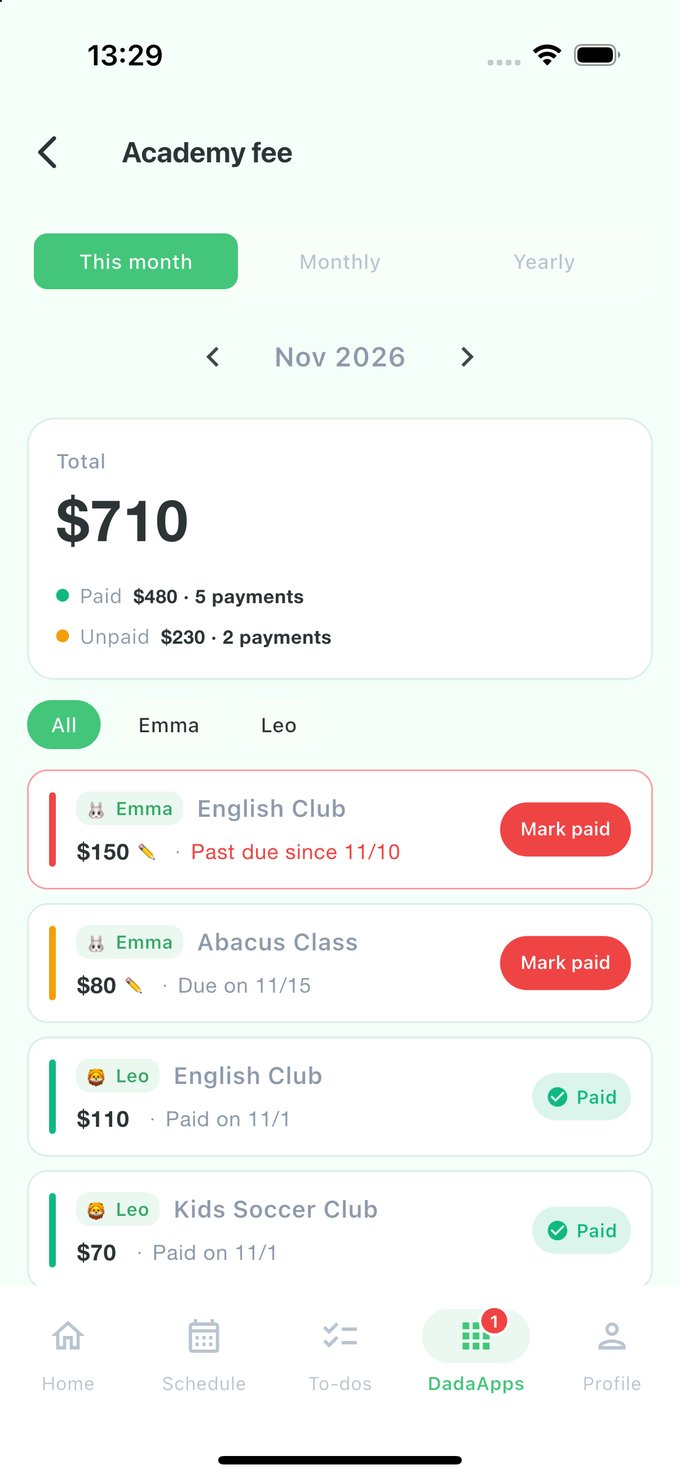
Because it is linked to the classes in your timetable, only classes your child actually attends appear in the list. Places they do not go to never get mixed in and inflate the total.
Paid, not paid, and due today
Each item carries a status, so you do not have to count days yourself.
- Paid on 11/1: already paid, with the date you paid
- Due on 11/15: not paid yet, with the date it is due (on the day itself it reads "Due today")
- Past due since 11/10: the due date has passed and it is still unpaid
Once you have paid, one tap on "Mark paid" is all it takes. When you see that an autopay went through, tap it, and next time you look you will not be confused.
What this month costs, right at the top
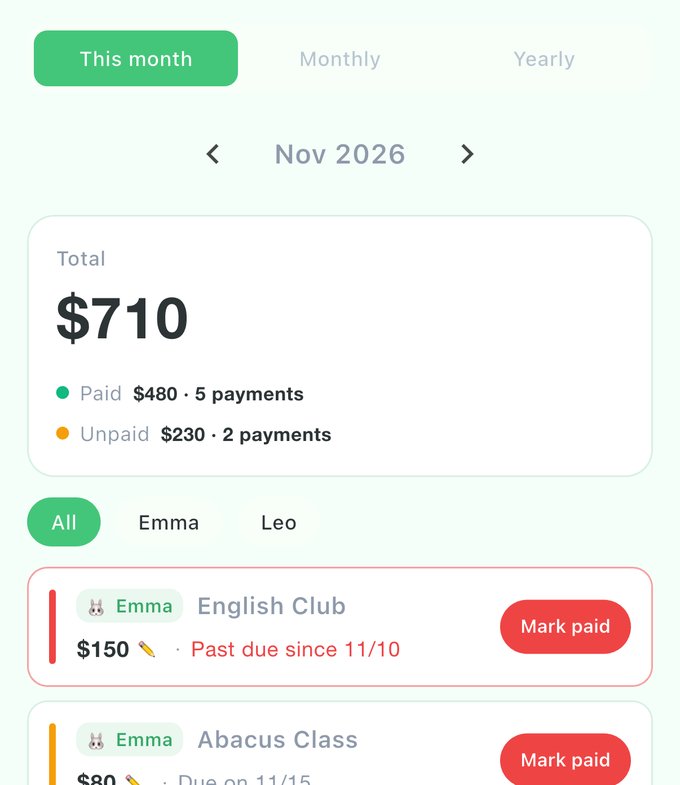
The card at the top shows this month's total, and below it the amount already paid and the amount still to pay, each with a count. When you want to estimate how much more will leave your account, this one line is enough.
With two or more children, the chips at the top let you filter by child. "How much did we spend on just our oldest this month?" is answered right away.
If a class takes a month off
Sometimes you do not pay for a month because of a holiday break or a closure. In that case, tap Skip this month.
Only that month is left out of the totals, and from the next month it comes back as usual. You do not need to delete the class and add it again. If you tapped it by mistake, tap again to undo it.
How much are you spending on classes in a year?
Open the Monthly and Yearly tabs at the top of the Academy fees screen to see the trend. A single month tells you little, but once several months pile up the picture changes.
Spending by class is shown too, which helps when you are wondering whether to add one more class, or when you want to sum up education costs at the end of the year. The record is already there, so you do not have to copy it into a household budget every month.
Getting started
- On the Schedule tab, add your child's classes (weekly timetable).
- In the class details, enter the monthly fee and the due date.
- Open the DadaApps tab and then Academy fees to see this month's list, and mark the ones you have paid with Mark paid.
If a fee goes up, just edit the class details. New entries use the new amount starting the following month.
Everything about your child, in one app
DadaRing is an app built for managing your child's classes, tutoring and school schedule. Alongside tuition, it also covers:
- Different classes every day, all on one screen (weekly timetable)
- School notices turned into to-dos from a single photo (Notice AI)
- A growth chart from a photo of an AR reading report (reading progress)
Try DadaRing for free
You do not have to dig through card statements. This month's tuition shows up in one line.