See Your Child's Schedule on the Same Screen as Your Partner and Grandparents
"What time is pickup today?"
"Did she go to swimming? Or is it piano today?"
"What did you pack for her?"
If both parents work, that is a lot of messages back and forth every day. On the days Grandma does pickup, you explain the same thing every time, and Dad ends up saying "I didn't hear that."
This post introduces family sharing in DadaRing. When your child's schedule is shared, there is simply less to ask and answer. Everyone is looking at the same screen.
You share one child at a time
DadaRing shares per child. You can share your older child with your parents and your younger child with your spouse, choosing different people for each child.
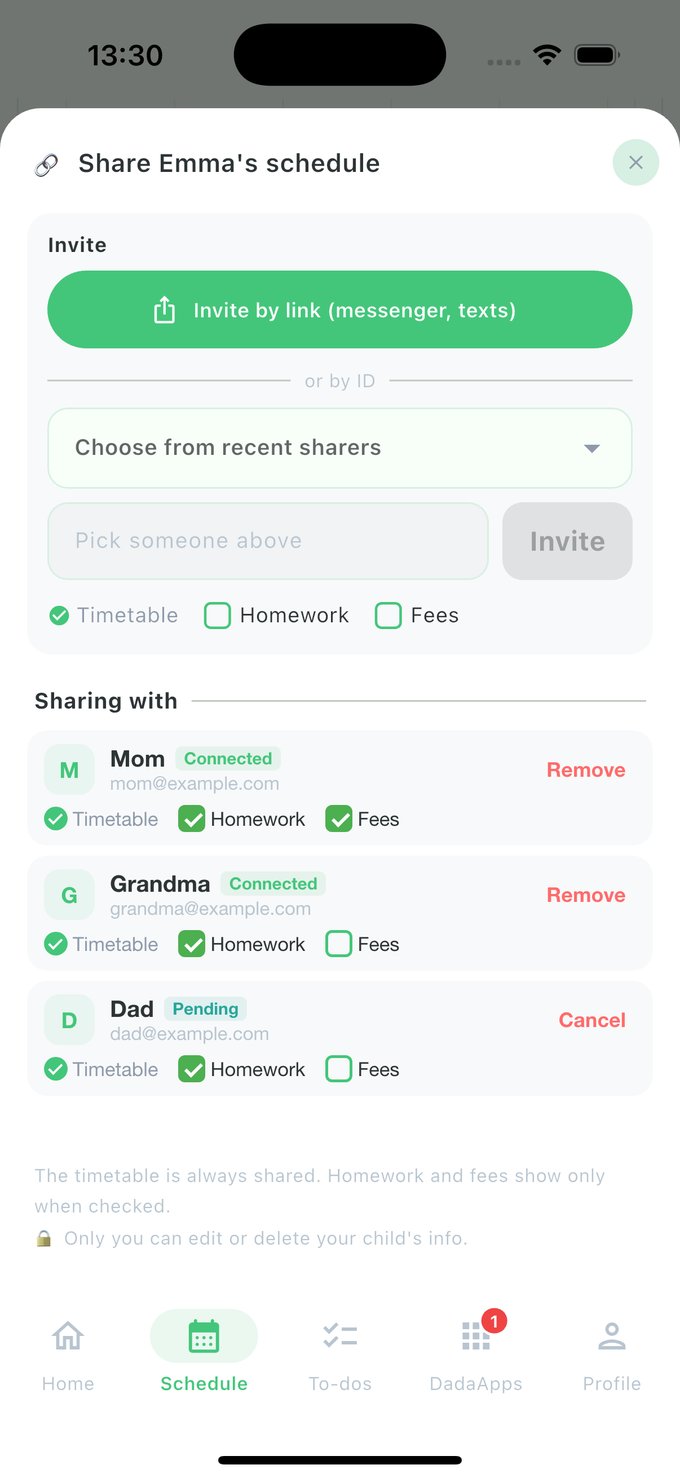
It is not only the schedule that is shared.
- Timetable — always shared; you view and edit it together
- Homework — when your child checks it off, it shows on your screen too
- Fees — track together whether something has been paid (tuition tracking)
For homework and fees, you can choose by checkbox whether each person sees them. Grandparents get the timetable and homework only, your spouse gets fees as well, and so on.
They do not have to be members
There are two ways to invite. Pick whichever fits.
- Invite by ID — if they already use DadaRing, just enter their DadaRing ID (email). A notification reaches their app, and once they accept, you are connected right away.
- Invite by link — if they are not members yet, use this. Send the invite link through a messaging app or text, and when they install the app and sign up, your child is connected automatically.
There is no need to tell Grandma, "Install the app, sign up, and send me your email so I can invite you." Send one link and you are done.
See who is looking, at a glance
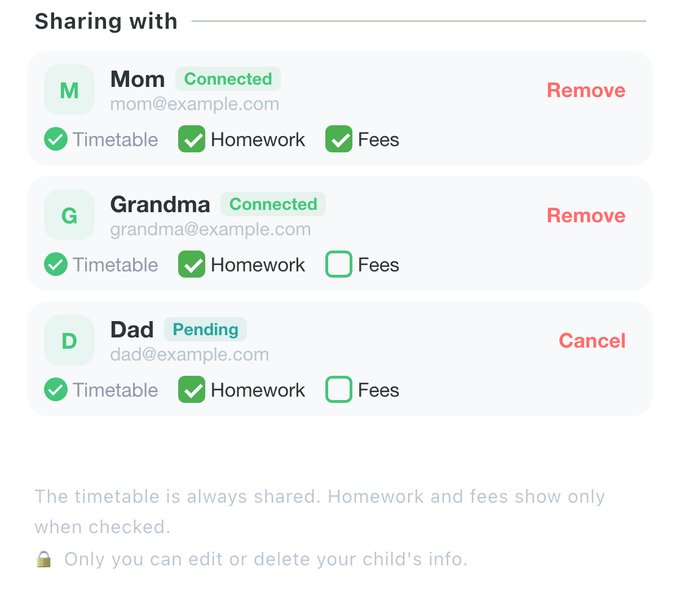
The sharing list shows who can currently see this child's schedule. Anyone who has not accepted yet shows as Pending, so you never wonder "I sent it, why can't they see it?"
To disconnect someone, use Stop sharing once. When a term ends and you no longer need the help, or when you sent an invite by mistake, cancel the invite and that is that.
Sharing with your child
For an older child, try sharing with them too. Your child checks today's schedule and homework on their own phone and ticks off homework themselves.
The app has a student mode, where your child's screen is simpler and centered on their own schedule. Instead of asking "did you do your homework?", you watch the checkmarks appear.
Getting started
- Tap Share & connect at the top of the Schedule tab.
- Choose Invite by link (messenger or text) or invite by DadaRing ID (email).
- Once they accept, you are connected and can look at the same screen.
Everything about your child, in one app
DadaRing is an app built for managing your child's classes, tutoring and school schedule. Alongside sharing, it also covers:
- Different classes every day, all on one screen (weekly timetable)
- Tuition due dates and unpaid bills sorted every month (tuition tracking)
- School notices turned into to-dos from a single photo (notice AI)
Try DadaRing for free
When everyone looks at the same screen, there is less to ask and answer.