Check Your Child's Classes from the Home Screen, Without Opening the App: Widget Guide
"Mom, do I have taekwondo or piano today?"
Get that question every morning and you pause for a second. English on Monday, piano on Tuesday, taekwondo on Wednesday... With two kids the combinations double. By the time you have opened a calendar app, hunted for a note and scrolled back through a class group chat, the getting-ready time is already tight.
This post shows how to check your child's schedule for today right on your phone's home screen, without opening the app. All you need is the DadaRing app.
What a home screen widget does for you
DadaRing's home screen widget keeps your child's schedule on your phone's first screen. When you unlock your phone and glance at the home screen, you are done in that one second.
- Today's schedule: shows the flow of the day in time order, from what is finished to what is on now and what comes next. The current activity gets a "Now" badge.
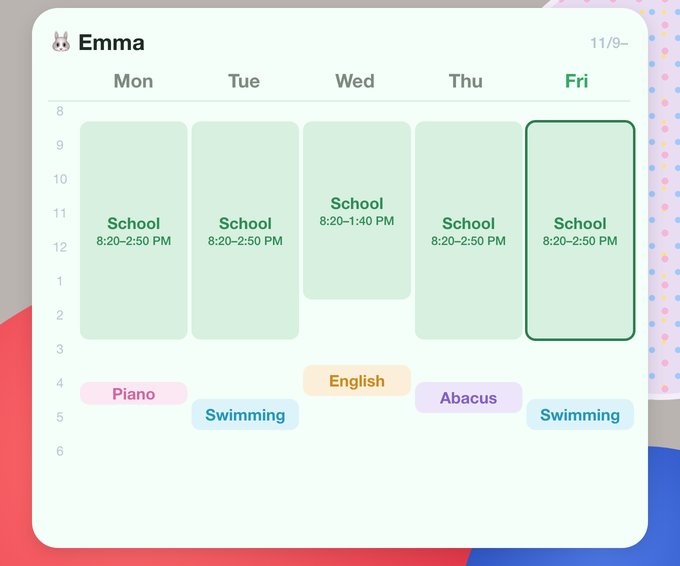
- Weekly timetable: the week's class timetable as color blocks at a glance. "Is there swimming this Thursday?" is answered right away.
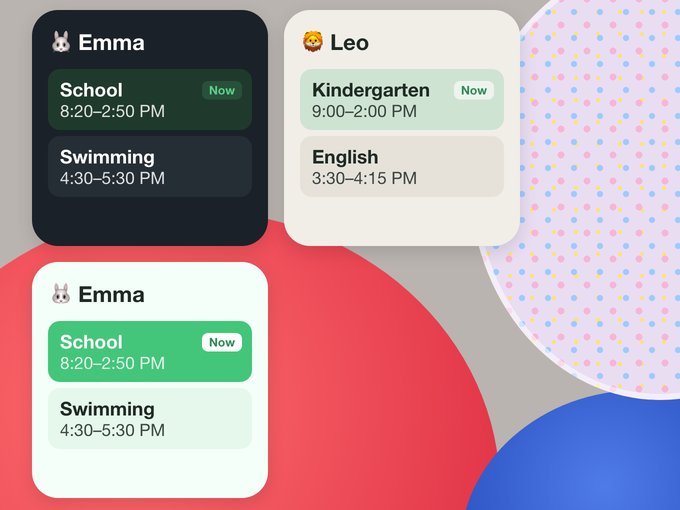
If you have several children, you can place a separate widget for each child. Put the oldest's widget next to the youngest's and both kids' days sit on one screen. You can also pick a style to match your home screen.
How to set it up (about a minute)
iPhone (iOS)
- Press and hold an empty spot on your home screen.
- Tap the + button (or Edit, then Add Widget) and type "DadaRing" in the search box.
- Choose from "DadaRing Schedule" (today) or "DadaRing Weekly" in the style and size you like, then tap Add Widget.
Press and hold the widget you placed and choose edit, and you can pick which child to show and the theme.
Android
- Press and hold an empty spot on your home screen, then choose Widgets.
- Find DadaRing in the list, then press and hold the widget style you want and drop it onto your home screen.
- In the widget settings, choose a child and tap Add, and you are done.
Beyond the widget: how easy is entering the schedule?
A widget is just a window. What matters is managing the schedule itself, and DadaRing is built around children's class schedules.
- Enter a class once with the days it repeats, and the weekly timetable fills in every week (weekly timetable).
- Blocks you can tell apart by color and emoji for each class.
- Real-time schedule sharing with a partner, grandparents or a sitter. It shows up the same way on each person's widget.
- Tuition due dates and amounts managed alongside (tuition tracking).
If you have been getting by with a general-purpose calendar while looking for a "kids' schedule app," give an app designed around children's class schedules a try.
Try DadaRing for free
Your child's day, spread across your home screen.