Where Are We Right Now? Today's Schedule the Moment You Open the App: The Home Screen
It is 3:50 in the afternoon and a meeting has just ended. "Has Leo's English class started yet? What time is Emma's swimming?" You scroll through your phone for the photo of the timetable you saved.
With two kids you have two timetables, and every weekday is different. When you open DadaRing, the answer is already on the first screen: which class is on right now, what comes next, and what you need to take care of today.
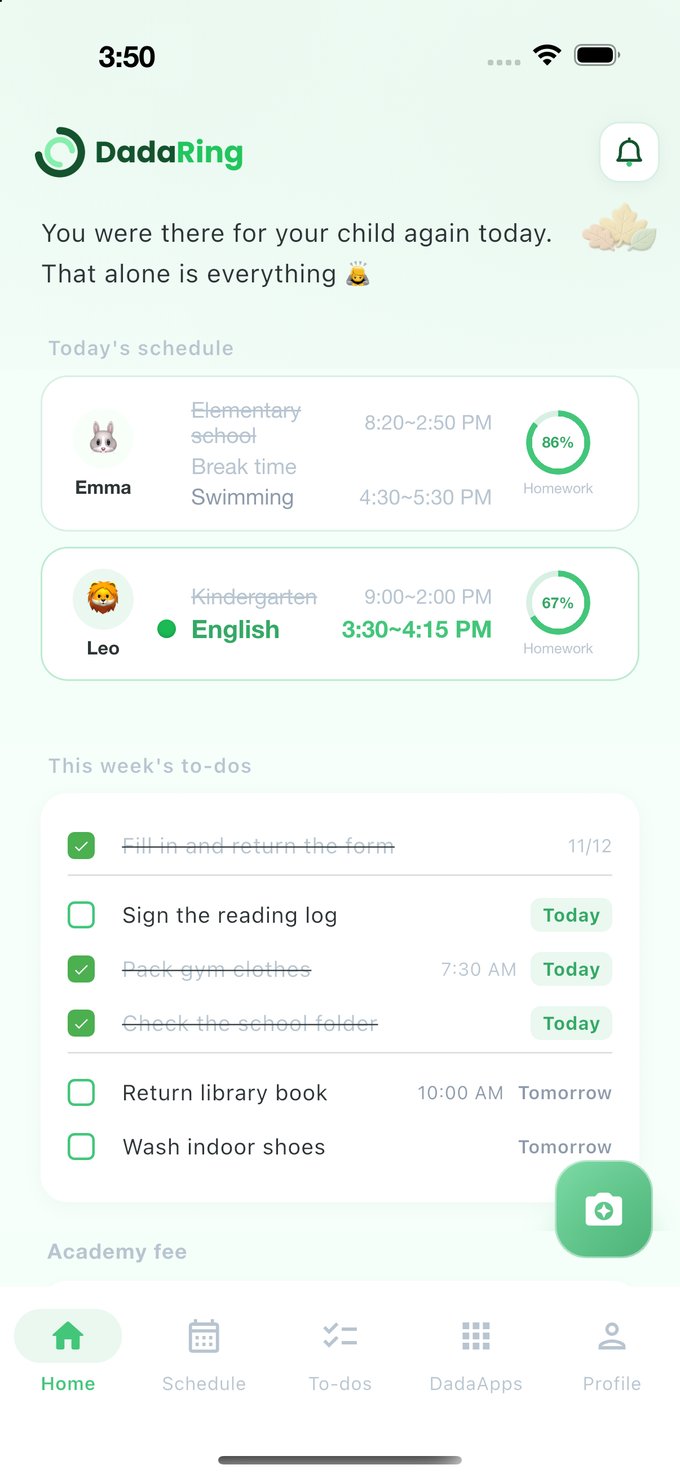
One card per child: the current class and the next one
At the top of Home, Today's schedule has one card for each child. It fills in on its own from the classes and school hours you entered in the weekly timetable, matched to the current time.
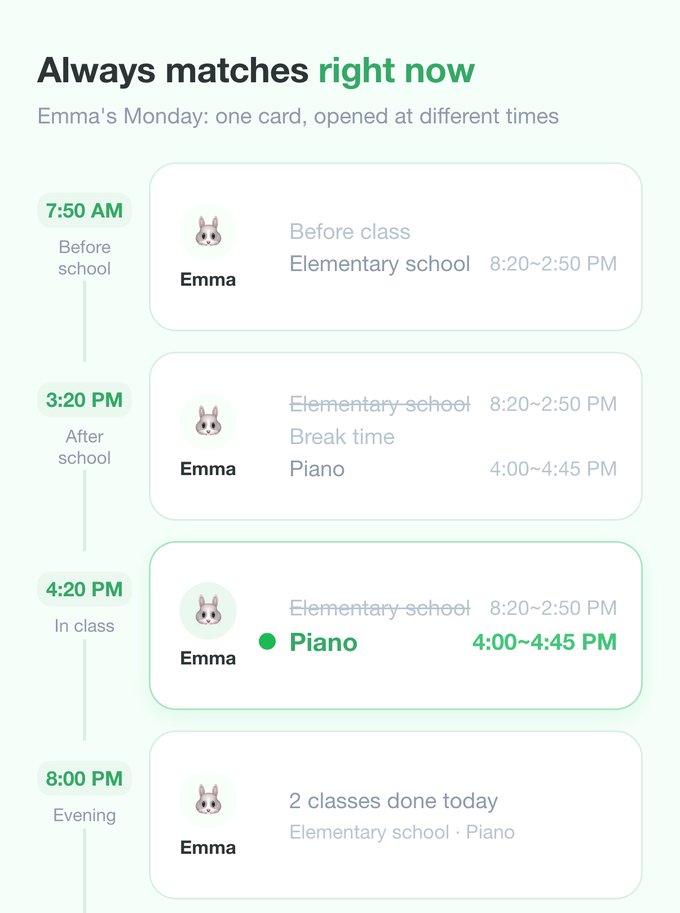
- The class happening now appears in bold green, and the card's border turns green too.
- The class that just ended is shown above with a strikethrough, and the next one is shown below with its time.
- Between classes the card reads "Break time", before the first class it reads "Before class", and when everything is over it changes to something like "2 classes done today".
The circle on the right of each card shows this week's homework progress. Tap it and that child's homework panel opens right away (homework and to-dos). With four or more children, swipe the cards sideways.
This week's to-dos, checked right on Home
Below that, This week's to-dos gathers everything from Monday to Sunday in date order. Today's items carry a Today label, tomorrow's a Tomorrow label, and a thin line separates one day from the next.
- Tap the checkbox on the left and the item is marked done on the spot. There is no need to go to the To-dos tab.
- Tap the title to jump to the calendar on the To-dos tab.
- When you open the app on a Sunday, it shows through the following Sunday, so you can look over the new week in advance.
Cancelled and rescheduled classes, collected in one place
If a class is cancelled or moved this week, a This week's schedule changes card appears. The original time is struck through and the new time is shown in green, so you do not forget that "Thursday's swimming got pushed back half an hour." When nothing has changed, the card does not appear at all.
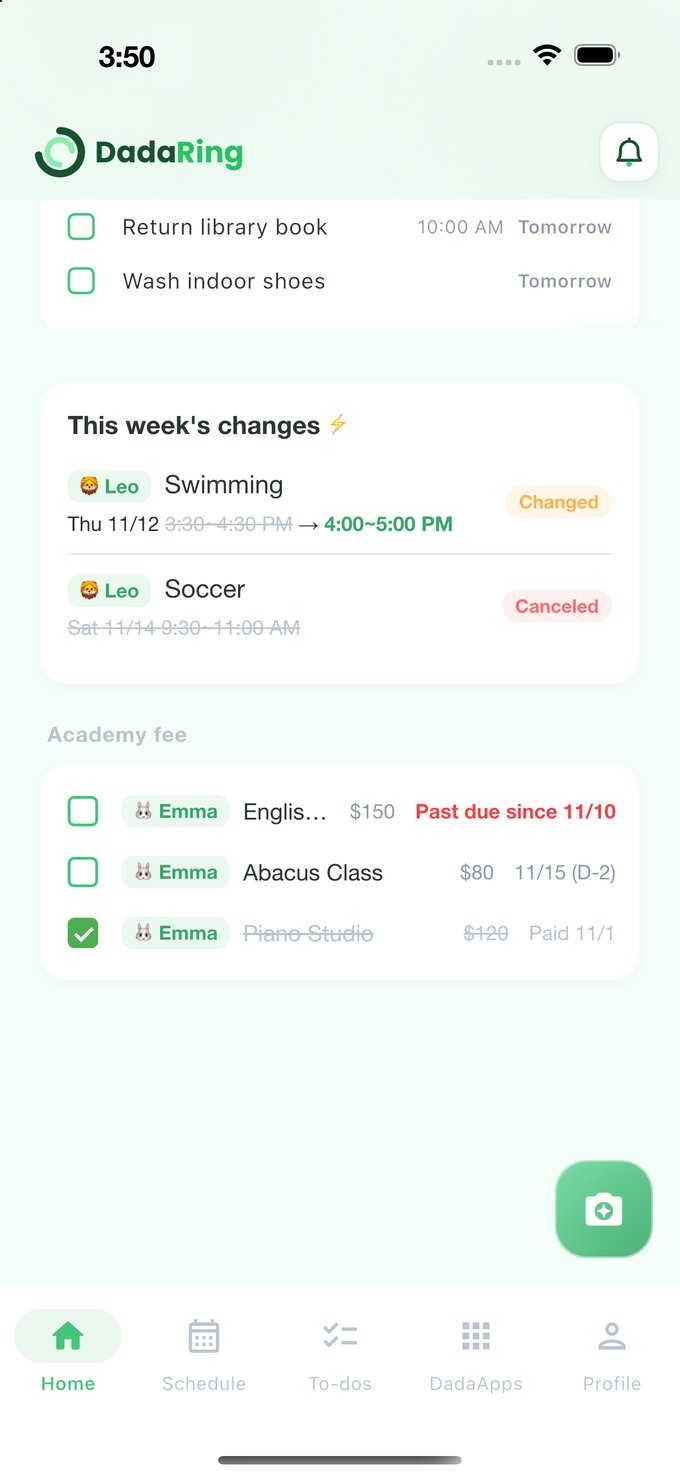
Fix a cancellation or make-up class for that week only in the weekly timetable and Home reflects it right away (weekly timetable).
Tuition: check it off the day you pay
At the bottom, Academy fees lists fees whose due date is coming up soon. Any fee that is past its due date and still unpaid stays in red.
- Pay, tap the checkbox, and it is recorded as done.
- Items you checked today stay on the list with a strikethrough for the rest of the day, so if you tapped by mistake, tap again to undo it.
- Tap an academy name to go to the DadaApps tab, where Academy fees shows the whole month and the monthly total (tuition tracking).
Other things you can start from Home
- The line at the very top changes every day. It suggests something to say to your child, like "What was the most fun thing today?"
- Use the camera button to photograph school notices, certificates or checkup results, and they are sorted by type in your archive (archive).
- Pull the screen down to refresh it with the latest schedule.
Try DadaRing for free
Finish "where are they now?" with one tap to open the app.